Buying Guides · updated 2026-10-16
How to Size an NVR Hard Drive for Your Security Cameras
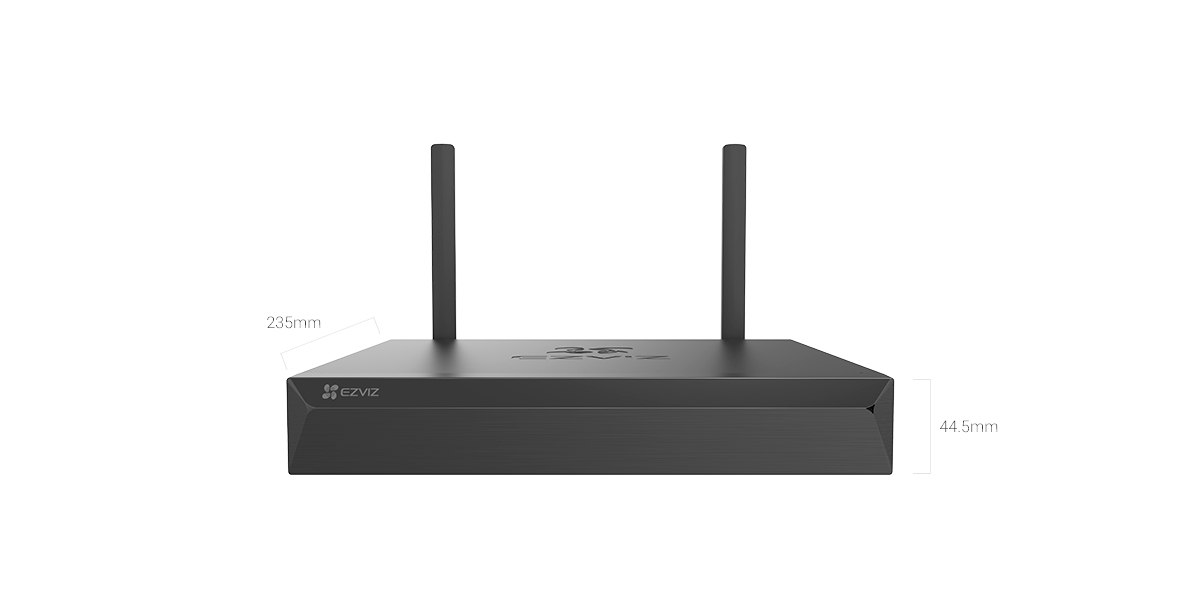
Buying an NVR is the easy part. Choosing the right hard drive is where many people guess, and guessing usually ends in one of two ways: a drive that fills up in a week, or a large drive that sits half empty. A short calculation takes the guesswork out of it.
Why storage needs vary so much
Two systems with four cameras each can need very different amounts of storage. The difference comes down to how much data each camera produces every second, known as the bitrate, and how long you want to keep the footage.
A busy 4K camera watching a road produces far more data than a 2K camera pointing at a quiet side passage. So a generic “2 TB is enough for four cameras” rule is rarely reliable. It is better to work from your own numbers.
The basic formula
Bitrate is measured in megabits per second (Mbps). One camera recording continuously at 1 Mbps produces roughly 10.8 GB of data in 24 hours. Multiply that by your bitrate, number of cameras and number of days, and you have a solid estimate.
As a quick reference, a single camera recording continuously uses approximately:
- 2 Mbps: about 22 GB per day
- 4 Mbps: about 43 GB per day
- 6 Mbps: about 65 GB per day
- 8 Mbps: about 86 GB per day
These are averages. Real-world bitrate moves up and down with the scene, so treat the figures as a planning guide rather than an exact measurement.
Where to find your camera’s bitrate
Open the camera’s settings in its app or on the NVR and look at the main stream (sometimes called the clear or fluent stream, depending on the software). You will usually see resolution, frame rate and bitrate. Only the main stream is normally recorded to the hard drive; the lower-quality sub stream used for live preview on your phone does not add meaningfully to storage.
If your cameras are set to a variable bitrate, the figure shown is often a maximum. Night scenes, rain, moving trees and busy streets push the bitrate up, while a static indoor view can sit well below the limit. If you can, check the actual file sizes after a few days of recording and use those instead.
A worked example
Imagine four cameras, each averaging 4 Mbps, recording continuously.
- Total bitrate: 4 cameras × 4 Mbps = 16 Mbps.
- Daily storage: 16 × 10.8 GB = roughly 173 GB per day.
- For 14 days: about 2.4 TB.
- For 30 days: about 5.2 TB.
- Add 15 to 20 per cent headroom, so aim for around 3 TB for two weeks or 6 TB for a month.
That headroom matters. Drives lose some usable space to formatting, and NVRs need room to overwrite old footage cleanly.
How recording mode changes the result
Continuous recording is the most demanding. If you switch to motion or event-based recording, the NVR only saves footage when something happens. In a quiet home setting, cameras might record for only a small fraction of the day, and storage needs can drop dramatically.
Many systems also offer a hybrid approach: continuous recording at a lower quality, with higher quality clips when motion or a person is detected. This is a sensible compromise if you want a complete timeline without paying the storage cost of full-quality footage around the clock.
Keep in mind that motion recording is only as good as its settings. If sensitivity is too high, wind and shadows can trigger constant recording and you lose the savings. If it is too low, you may miss something important.
Other settings that affect storage
Several camera settings change the bitrate and, in turn, the drive you need:
- Resolution: higher resolution generally means more data, though not in a strictly proportional way.
- Frame rate: dropping from 25 to 15 frames per second can noticeably reduce file sizes. For most home and small business views, 15 fps is perfectly usable.
- Compression: cameras using H.265 typically need less storage than those using H.264 for similar image quality.
- Audio: recording sound adds a small amount of data, usually negligible next to video.
- Bitrate cap: lowering the maximum bitrate saves space, but going too low can make footage blocky in busy scenes.
It is usually better to trim frame rate slightly on less important cameras than to compromise on resolution for a front door or driveway view where you may need to read detail.
Choosing the right type of drive
An NVR writes to its drive constantly, day and night, for years. Standard desktop drives are not built for that pattern. Look for a drive designed for surveillance use, which is optimised for continuous writing, lower heat and long running hours.
Before you buy, check your NVR’s specifications for two things: the maximum capacity per drive it supports, and how many drive bays it has. Some models handle very large drives, while others have limits. Also confirm the drive interface matches; most NVRs use standard 3.5-inch SATA drives, though compact models may differ.
Remember that drive capacities are advertised in decimal terabytes, and your NVR will report slightly less usable space. That is normal.
Plan for drive failure
Every hard drive will fail eventually, and surveillance drives work hard. Do not treat the NVR as the only copy of footage you cannot afford to lose. If you have an incident, export the relevant clips to a computer or another storage device straight away rather than leaving them on the recorder.
It is also worth checking the NVR’s storage health or drive status page every few months. Many recorders will alert you if a drive is not detected or has stopped recording, but only if notifications are switched on.
Conclusion
To choose your NVR hard drive size, find each camera’s bitrate, multiply it by 10.8 GB per day per Mbps, then multiply by the number of cameras and the days of footage you want. Add around 20 per cent for headroom. If the total looks too large, switch to motion recording, lower the frame rate on less critical cameras or use H.265 rather than buying a bigger drive straight away.
Finally, pick a surveillance-rated drive, confirm your NVR supports its capacity, and export important footage promptly. A few minutes of planning now means your recorder will hold the footage you actually need.
 Buying GuidesExtending a Security Camera Power Cable: Safe Options
 Buying GuidesMotion Detection Zones and Privacy Masks: Setup Guide
 Buying GuidesSecurity Cameras for Holiday Homes and Cottages: Setup Guide