Buying Guides · frissítve: 2026-10-16
2.4GHz vs 5GHz Wi-Fi for Security Cameras: Which Is Best?
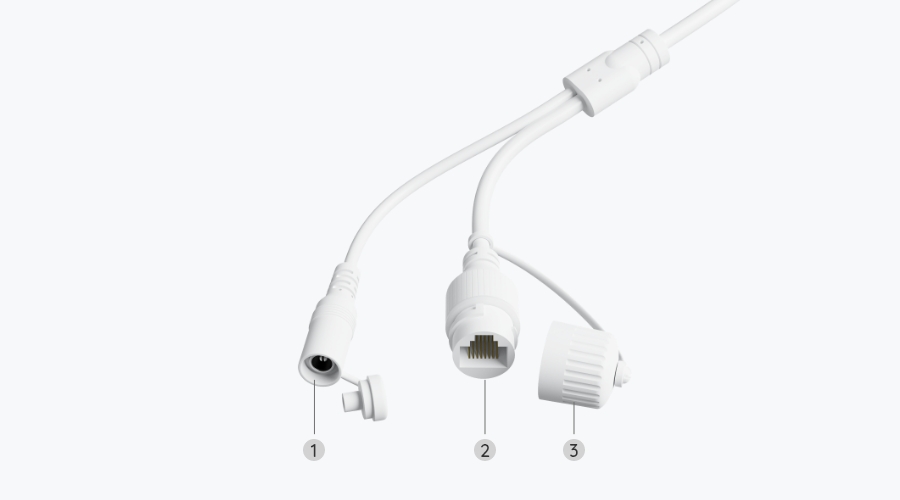
Most Wi-Fi security camera problems, such as choppy live view, missed recordings and cameras that keep dropping offline, come down to the wireless connection rather than the camera. One of the biggest factors is which Wi-Fi band the camera uses. This guide explains the practical differences between 2.4GHz and 5GHz and how to choose for each camera.
The basic difference between 2.4GHz and 5GHz
Your router broadcasts on two radio bands. Both carry the same internet traffic, but they behave differently.
2.4GHz has a longer range and handles walls, floors and outdoor distances better. The trade-off is lower top speeds and a crowded airwave, because neighbours’ routers, Bluetooth devices, baby monitors and even microwave ovens all share it.
5GHz is faster and usually less congested, with more channels available. However, the signal is absorbed more easily by walls, brick, concrete and foil-backed insulation, so its effective range is shorter.
Neither is simply better. The right choice depends on how far the camera is from the router and how much video it needs to send.
How much bandwidth does a camera actually need?
A camera uploads its video stream whenever you view live footage, and also when it records to a cloud service or to an NVR over Wi-Fi. The bitrate depends on resolution, frame rate, compression and scene activity. As a rough guide, a modern high-resolution camera may use anywhere from a few megabits per second to over ten.
That is well within what a healthy 2.4GHz link can manage for one or two cameras. The problem is that real-world 2.4GHz speeds drop quickly when the signal is weak or the band is busy. With several high-resolution cameras on one network, 5GHz gives you noticeably more headroom.
When 2.4GHz is the better choice
Choose 2.4GHz when reliability at distance matters more than speed. Typical cases include:
- Cameras on a garage, shed, outbuilding or the far side of the house
- Cameras that must send their signal through one or more thick walls
- Battery-powered cameras, where a stable low-speed link is often enough
- Older or budget cameras that only support 2.4GHz
A weak 5GHz signal can be worse than a solid 2.4GHz one. If a camera sits at the edge of your coverage, the longer range of 2.4GHz will usually give you a steadier connection, even if the theoretical speed is lower.
When 5GHz is the better choice
Choose 5GHz when the camera is close to the router or an access point and you want smooth, high-quality video. This suits:
- Indoor cameras in the same room or an adjacent room to the router
- Higher-resolution cameras with bigger video streams
- Homes in flats or dense housing, where 2.4GHz is saturated by neighbouring networks
- Setups with many Wi-Fi devices where you want to keep cameras off the crowded band
Not every camera supports 5GHz, so check the specifications before you buy. Many cameras are 2.4GHz only, while others are dual-band. If you are buying for a specific location, confirm this on the product page.
Getting the most from your Wi-Fi connection
Whichever band you use, a few simple steps improve stability considerably:
- Check signal strength at the camera position. Use the camera’s app or a phone at the mounting spot. As a general rule, a signal around -67 dBm or stronger is a sensible target for video; much weaker and you may see lag or dropouts.
- Pick a clear channel. On 2.4GHz, channels 1, 6 and 11 do not overlap with one another, so choosing the least busy of these often helps. On 5GHz there is more room, but some channels share spectrum with radar systems and your router may switch away from them automatically.
- Keep the router central and elevated. Avoid placing it inside a cupboard, behind a TV or next to large metal objects.
- Use a mesh system or access point for large properties. This is usually more effective than a plug-in range extender, which can halve throughput.
- Reduce interference. Keep cameras and routers away from microwaves, cordless phones and other 2.4GHz devices where possible.
- Keep firmware up to date. Both router and camera updates can fix connection issues and improve security.
Setup tips: separate names and the pairing trap
Many routers use a single network name for both bands and automatically steer devices between them. This is convenient for phones but can cause trouble with cameras. A 2.4GHz-only camera may fail to pair if your phone is connected to 5GHz at the time.
If pairing fails, temporarily disable 5GHz on the router, or give each band its own name, such as HomeNet and HomeNet-5G. You can then connect the camera deliberately to the band you want. After setup, a camera that roams unpredictably between bands is a common cause of random disconnections, so a fixed connection is usually more reliable.
Also make sure the Wi-Fi password does not contain unusual characters that the camera app struggles with. If the setup repeatedly fails, try a simpler but still strong password.
When Wi-Fi is not the right answer
Sometimes no amount of tuning will solve a poor connection. If a camera is far from the house, behind thick stone walls, or needs guaranteed 24/7 recording, a wired connection is a better solution. A PoE camera carries power and data over one network cable, removing Wi-Fi from the equation entirely. For a remote location with no network at all, a 4G camera with its own SIM or a solar-powered model may be more appropriate.
Wi-Fi works best for flexible, easy installation in places where the signal is already good.
Conclusion
As a simple rule, use 5GHz for cameras close to your router where you want speed, and 2.4GHz for cameras further away or behind obstacles where range counts. Always test the signal at the actual mounting position before drilling, keep your router placement sensible, and consider a mesh system or a wired PoE camera for difficult spots. A little planning at the start will give you smoother live view, more reliable recording and fewer missed events.
 Buying GuidesMotion Detection Zones and Privacy Masks: Setup Guide
 Buying GuidesSecurity Cameras for Holiday Homes and Cottages: Setup Guide
 Buying GuidesSecurity Cameras in Winter: Cold Weather Tips and Fixes