Buying Guides · ενημερώθηκε 2026-10-22
microSD Card Not Recording? Security Camera Fixes and Checks
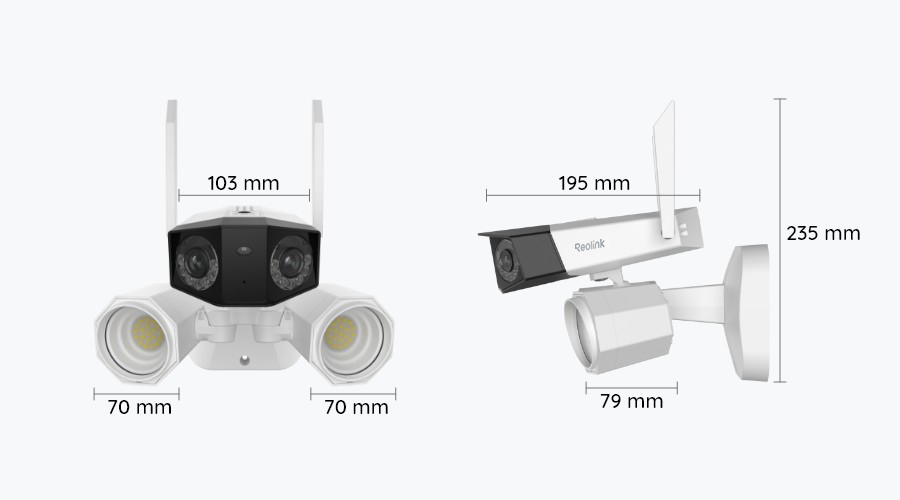
A microSD card is the simplest way to store footage on a Wi-Fi, battery, 4G or trail camera. It is also one of the most common reasons a camera quietly stops recording. You usually only notice when you need the footage, and the timeline turns out to be empty. As the nights draw in and cottages are closed for winter, now is a good time to check that the cards in your cameras are actually working.
This guide covers the typical warning signs, the checks to make in the right order, and how to choose a card that lasts in a security camera.
Signs Your Camera's microSD Card Has a Problem
Cards rarely fail all at once. Most give some warning first. Look out for:
- The app shows "No SD card", "SD card error" or "Abnormal" in the storage settings.
- The playback timeline has gaps, even though motion alerts arrived.
- Clips stop mid-event, freeze or refuse to play.
- Free space shows as zero, or the card never overwrites old footage.
- The camera restarts on its own or reports the card as unformatted after every reboot.
- You cannot export or download clips that appear in the list.
Any one of these is reason enough to investigate before the next incident, not after it.
Quick Checks to Do First
Work through these in order. Many "dead" cards turn out to be a settings or connection problem.
- Check the recording settings. Make sure recording to the card is switched on, and that the schedule or detection settings have not been changed. If the camera records on motion only, a quiet night will naturally look empty.
- Update the firmware and the app. Manufacturers often fix storage bugs in firmware updates.
- Power the camera off and reseat the card. Remove power first, take the card out, look for dirt or moisture in the slot, then push the card back in until it clicks. Cameras exposed to temperature swings can collect condensation around the card slot cover.
- Check the slot cover seal. On outdoor cameras, a cover that is not fully closed lets moisture in and can corrode the contacts.
- Test the card in a computer. If a card reader cannot read it either, the card itself is the likely culprit.
- Try a different, known-good card. If the new card works, you have your answer. If it does not, the problem is more likely the camera or its settings.
Format the Card in the Camera, Not on a Computer
The most effective single fix is to format the card from the camera's app or menu. Each camera prepares the card in the file system and folder structure it expects. A card formatted on a PC, or one moved from a phone or another camera, may be read inconsistently or not at all.
Keep in mind:
- Formatting erases all footage. Export any clips you need first.
- Format a brand-new card in the camera before relying on it, even if it appears to work straight away.
- If the camera cannot format the card at all, the card is often faulty or not compatible.
- Do not remove the card or cut the power while formatting is in progress.
Some people format their cards every few months as routine maintenance. This is not strictly necessary, but it can clear up file system errors that build up with constant overwriting.
Capacity and Compatibility Limits
Every camera has a maximum supported card size. You will find it in the manual or on the product page. Common limits are 128GB, 256GB or 512GB, but the figure varies by model, so always check yours. A card larger than the supported size may not be recognised, or may only work unreliably.
A few more compatibility points:
- Speed class: For security cameras, choose at least Class 10 / U1. For 4K or dual-lens cameras, U3 or V30 is a sensible choice. Speed matters less than endurance, but a card that is too slow can cause dropped frames.
- Bigger is not always better: A card that fits your camera's limit and gives a few days to a couple of weeks of footage is usually enough. Older footage is overwritten automatically.
- Counterfeit cards: Fake cards can report a larger capacity than they really have. They appear to work until they fill up, and then footage is silently lost. Buy from reputable sources and be wary of capacities that seem too cheap to be true.
Why Ordinary Cards Wear Out: The Endurance Question
Ordinary microSD cards are designed for phones and photo cameras, where data is written now and then. A security camera writes data around the clock, or several times every hour on motion recording, and keeps overwriting the same card. Flash memory can only handle a limited number of write cycles, so a standard card can wear out far sooner than expected.
High-endurance cards are built for exactly this workload. Examples are SanDisk's Max Endurance range and the endurance cards that camera brands sell under their own names. Manufacturers usually rate them in hours of continuous recording rather than just storage size. They also tend to cope better with heat and cold. For any camera that records continuously or sits outdoors, an endurance card is well worth choosing.
Even endurance cards are consumables. It is reasonable to replace a card in a busy camera every year or two, and straight away if errors start to appear.
Cold, Power Cuts and Remote Cameras
Late autumn and winter in northern Europe put extra stress on memory cards:
- Low temperatures: Check the card's rated operating temperature, not just the camera's. Cards rated for wider temperature ranges are the safer choice for unheated outbuildings, cottages and trail cameras.
- Power cuts: Losing power while the camera is writing can corrupt files or the file system. On a PoE system or mains-powered camera, a small UPS reduces this risk. On battery cameras, keep the battery topped up so the camera does not shut down mid-recording.
- Remote sites: On a summer cottage camera or a trail camera used during the hunting season, nobody may notice a failed card for weeks. Where possible, use the app to check storage status remotely. On 4G cameras, enable alerts so the camera tells you about storage errors.
- Swapping trail camera cards: Switch the camera off before removing the card. Let a cold card warm up gradually in a closed bag before reading it indoors, so condensation does not form on it.
A Simple Routine to Prevent Lost Footage
A few minutes now and then saves a lot of frustration:
- Once a month, open playback in the app and check that recent footage is actually there.
- Look at the storage status and free space shown in the camera settings.
- Keep the camera firmware up to date.
- Export important clips straight away, because the card will eventually overwrite them.
- Keep a spare, pre-tested endurance card for your most important camera.
- For critical areas, consider a second copy of the footage, such as an NVR, a home hub or cloud storage, so a single failed card does not leave you with nothing.
Conclusion
When a camera stops recording to its microSD card, start with the basics: recording settings, firmware, reseating the card and formatting it in the camera. If errors return, check that the card is within the camera's supported capacity and is a genuine high-endurance model. With winter approaching and many cameras left unattended, a quick storage check and a suitable card today mean the footage will be there when you need it.
 Buying GuidesReolink Home Hub: Κεντρική αποθήκευση χωρίς NVR
 Buying GuidesDual-Lens Security Cameras Explained: Are Two Lenses Better?
 Buying GuidesExtending a Security Camera Power Cable: Safe Options